Pick the option for the device
| Device | Option | Source | Size and time |
|---|---|---|---|
| Android phone or tablet | Android APP | App Download on the TK999 site | Tens of MB; a minute on Wi-Fi |
| iPhone or iPad | iOS Lite-App | Share menu in Safari or Chrome, Add to Home Screen | No download; seconds |
| Any device | Mobile browser | Type the address | Nothing to install |
Android users install a file; iPhone users add a shortcut that launches without browser bars and stays signed in. The browser is the fallback when neither works or the device is shared. The Android APK page covers the Android file in more detail. Both open the same lobby and the same cashier, and a player who moves between an Android phone and an iPad can use both options on one account without anything to sync, because the account and the balance live on the server.

Installation by device
Prepare the phone
Free about 200 MB of storage and connect to Wi-Fi or stable mobile data. On Android, the installer asks the first time for permission to install from that source; that switch lives in Settings under Apps or Security, and the phone opens the right screen from the prompt. On iPhone, Safari and current Chrome both add home-screen apps from their share menus, and the steps below are written for Safari. Update the operating system if the phone is several versions behind. Note the login mobile number and password before starting. Two minutes of preparation save twenty minutes of troubleshooting, which is the whole argument for this section.
Android steps
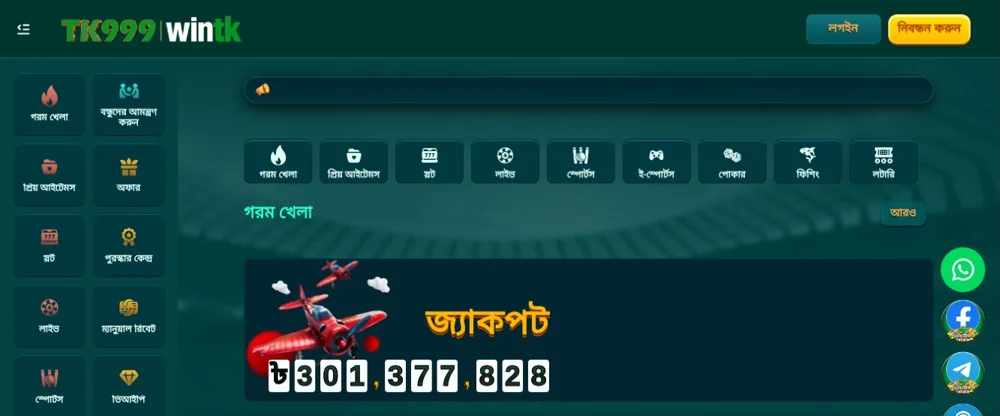
- Open the TK999 site in the phone's browser, log in or stay on the home page, and tap App Download.
- Choose Android. The file downloads to the Downloads folder.
- Tap the finished download in the notification bar or find it in Files. A prompt saying installs from this source are blocked is the permission; allow it for that app and tap the file once more. A Play Protect warning is a different message about the file itself; read it in full, and on a harmful verdict stop and follow the fix table below.
- Glance through the permission list, then tap Install.
- Open the app, sign in, and confirm the OTP if the device is new.
The whole path takes two or three minutes on Wi-Fi. The permission prompt and a Play Protect warning look similar and are not the same: one is about your settings, the other is Google's scan of the file. Files from anywhere other than App Download are not TK999 files. Delete them unopened.
iOS Lite-App steps
- Open the TK999 site in Safari on the iPhone.
- Tap the share icon at the bottom of the screen.
- Choose Add to Home Screen and confirm the name.
- Open the new icon. It launches full screen and keeps the login.
Chrome on iPhone offers the same step from its share menu on current versions, so use whichever browser you have; if a browser's share menu has no Add to Home Screen, Safari always does. The Lite-App updates itself, as it loads the live site. Removing the icon removes nothing from the account. An iPad follows the same taps.
After installation
First login and the app bonus
The website credentials work unchanged. On a new device an OTP arrives first, and then the account shows the same balance, bonuses and VIP level as before. Do not register again; a duplicate account strips promotions from both. Then, if this is the account's first deposit, pay BDT 100 or more through the cashier and the BDT 18 credit arrives under the card's terms, with wagering of five times the combined sum, BDT 590 at the minimum. It is once per person and for new users; an account that already deposited on the website does not qualify. The deposit page covers bKash and Nagad steps. A card that was applied on the website stays applied in the app, and a turnover counter that was running keeps running, because the Promotions tab in both is the same tab seen through two windows.
When a stage fails
| Stage | Symptom | Fix |
|---|---|---|
| Download | File never appears | Check storage and connection; retry from App Download |
| Open file | Installs from this source blocked | Allow it for the browser or Files; tap the file again |
| Open file | Play Protect warning | Read the text in full; on a harmful verdict do not install; delete the file and ask live chat before any new attempt |
| Install | Parse error or incomplete | Delete the file; download again over Wi-Fi |
| Open app | Crash on start | Restart the phone; check the OS version; reinstall |
| Login | Wrong password | Use Forgot Password on the login screen |
| iOS | No Add to Home Screen in the share menu | Update the browser, or use Safari |
Identify the stage that failed before asking for help, because the fixes differ by stage and support will ask. A login error after a successful install is an account matter, not an app matter. The login page covers the account side. Two failures are easy to check first: the unknown-apps permission on Android and a share menu without Add to Home Screen on an older iPhone browser.
Updates and reinstalls
The Android app announces updates on open and installs them over the existing version, keeping the login. If an update fails, uninstall, download a fresh file from App Download and install again; the account is untouched, as it lives on the server. The Lite-App needs no updates. Take the file only from the TK999 site; copies elsewhere are unchecked and sometimes infected. A fresh install after a phone change follows the same steps as the first one, and the account is waiting behind the login with the balance and the VIP level intact, which is the reason the mobile number and password matter more than the file.

Frequently asked questions
Which option should an iPhone user choose?
The iOS Lite-App, pinned with Add to Home Screen from Safari or from a current Chrome. There is no App Store listing and no file to download. The mobile browser works as well with the same login. Full-screen behaviour can differ between browsers, so open the icon once and check.
Should I register again after installing?
No. Log in with the existing mobile number and password. A duplicate account breaks the one-account rule and both lose their promotions. The app bonus pays to the existing account only if its first deposit is still to come, at BDT 100 or more with a verified number.
What should I send to support if setup fails?
The device model, the OS version, the stage that failed, the exact error text and a screenshot. Live chat opens from the login screen. Say whether the file came from App Download. If the agent asks for a step to be repeated, repeat it exactly as described and report the new message word for word, since a paraphrased error text sends the case back to the start.
Does the app use more data than the browser?
Less, after the first install. The Android app keeps its interface files on the phone and loads only game content and live prices, and the Lite-App caches the shell the same way. Game streams from live tables use the most data in either case. A download over mobile data works, and Wi-Fi is the safer choice for the tens of megabytes of the Android file. Promotions notifications can be switched off in the phone settings without touching the app.
What are the two mobile options?
Android users install the APK; iPhone and iPad users add the iOS Lite-App to their home screen.